
Execution Time Addons, Robots.txt, Profile Refreshes, Custom Schedules, and More
An overview of exciting new features from Browsertrix 1.19, 1.20, and 1.21.
We are excited to announce a new release of Browsertrix, 1.21. This blog post covers the changes in this new release, as well as the previous two releases, 1.19 and 1.20.
Each of these bring exciting new features, as well as bug fixes and performance improvements for Browsertrix. This blog post highlights some of the key features from each release, starting with the newest.
Browsertrix 1.21
Purchase additional execution time
A common pain point that we’ve heard from customers is that it can be frustrating when your org reaches its monthly execution time limit. Previously, any running crawls were automatically stopped at this point and could not be later resumed, and there wasn’t much users could do (short of upgrading their plan) other than wait for the limits to reset at the beginning of the next month.
In Browsertrix 1.21, it is now possible to purchase additional execution minutes at any time from right within Browsertrix itself. Org admins can go to Settings → Billing & Usage, and then click the button to purchase additional execution time. This will lead you directly to Stripe to complete the transaction. We have set some preset amounts of minutes that we expect users might want to use, but the amount you purchase is also fully configurable in Stripe. Once the purchase is complete, you will be returned to your org in Browsertrix and are able to begin archiving again immediately.
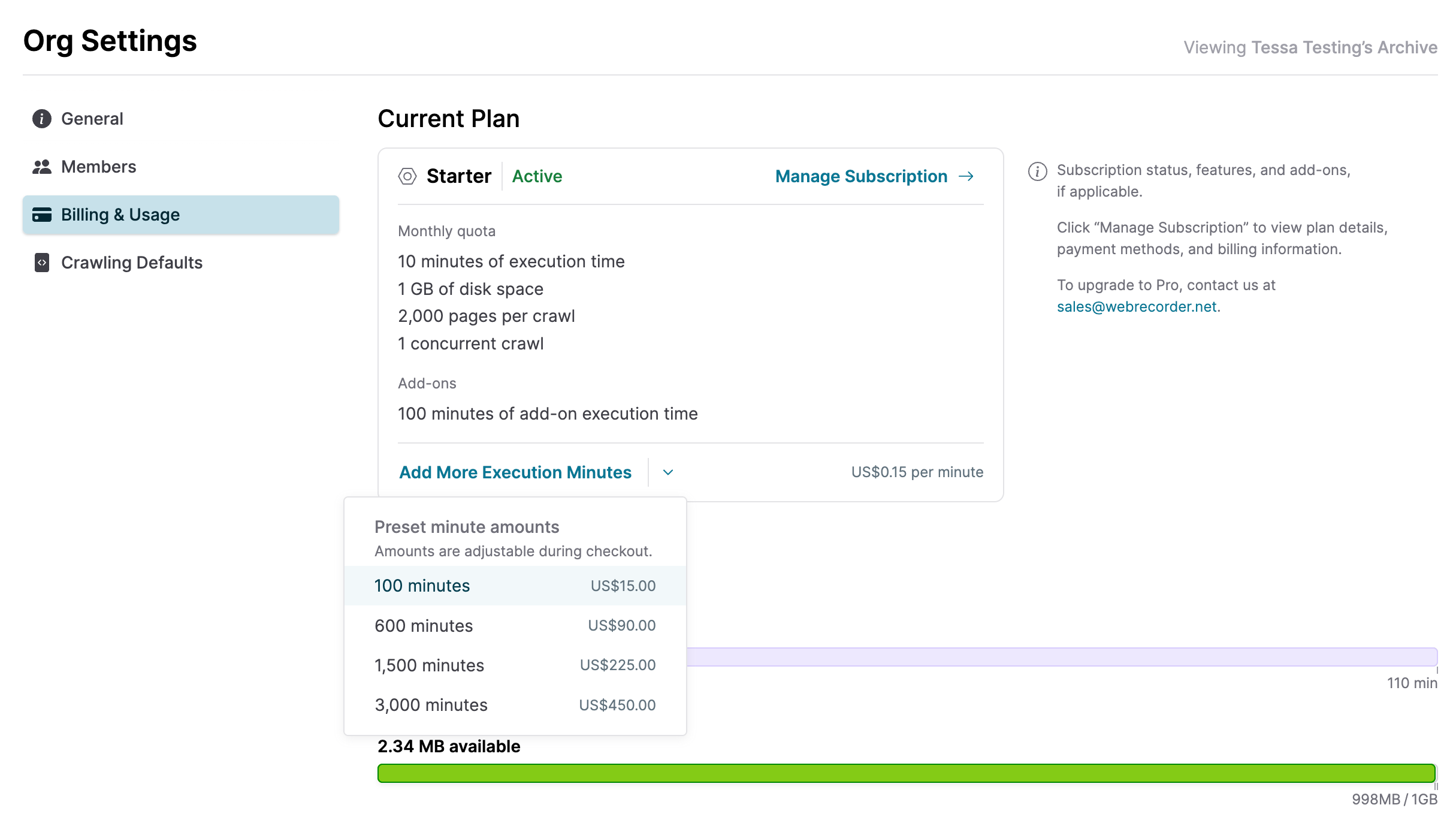
Additional minutes purchased this way are not tied to the month in which they are purchased and do not expire, so you are welcome to add and use these additional minutes however you would like.
Pausing crawls when org limits are reached
We’ve also changed what happens to crawls when limits are reached. Running crawls are now paused rather than stopped when the org’s storage or execution time limits are reached. This gives users up to a week to resume paused crawls from where they left off. At any point during that week, you can free up some storage space, purchase additional execution time, or wait until the monthly limits reset, and then continue archiving without needing to restart your crawls from the beginning.
Robots.txt support
Another long-requested feature from some of our user base has been support for the Robots Exclusion Protocol, more commonly known as robots.txt. This is a convention that allows website administrators to specify which content on their sites should not be captured by crawlers and other bots. This new option, disabled by default, is available in the Scope section of the crawl workflow editor.
At this time, Browsertrix’s support for robots.txt will skip any web pages disallowed by that host’s robots.txt policy, if one exists for that host. Our support for robots.txt does not yet check each resource on a page, as that could quickly break Browsertrix’s promise of high-fidelity web archiving. If there is sufficient demand from our users, we may revisit other options to expand the scope of robots.txt support in future releases.
Browsertrix 1.20
Browser profile refresh
One of the most significant changes in Browsertrix 1.20 is a reworked user interface for browser profiles. The new browser profile interface includes a number of improvements that make it easier for users to manage their browser profiles and the crawl workflows that use them.
Sites that have been visited with a browser profile are now prominently displayed in the Saved Sites list. Clicking on the saved site will open the site with the browser profile, making it easier than before to verify that a site is still logged in or otherwise configured the way you want.
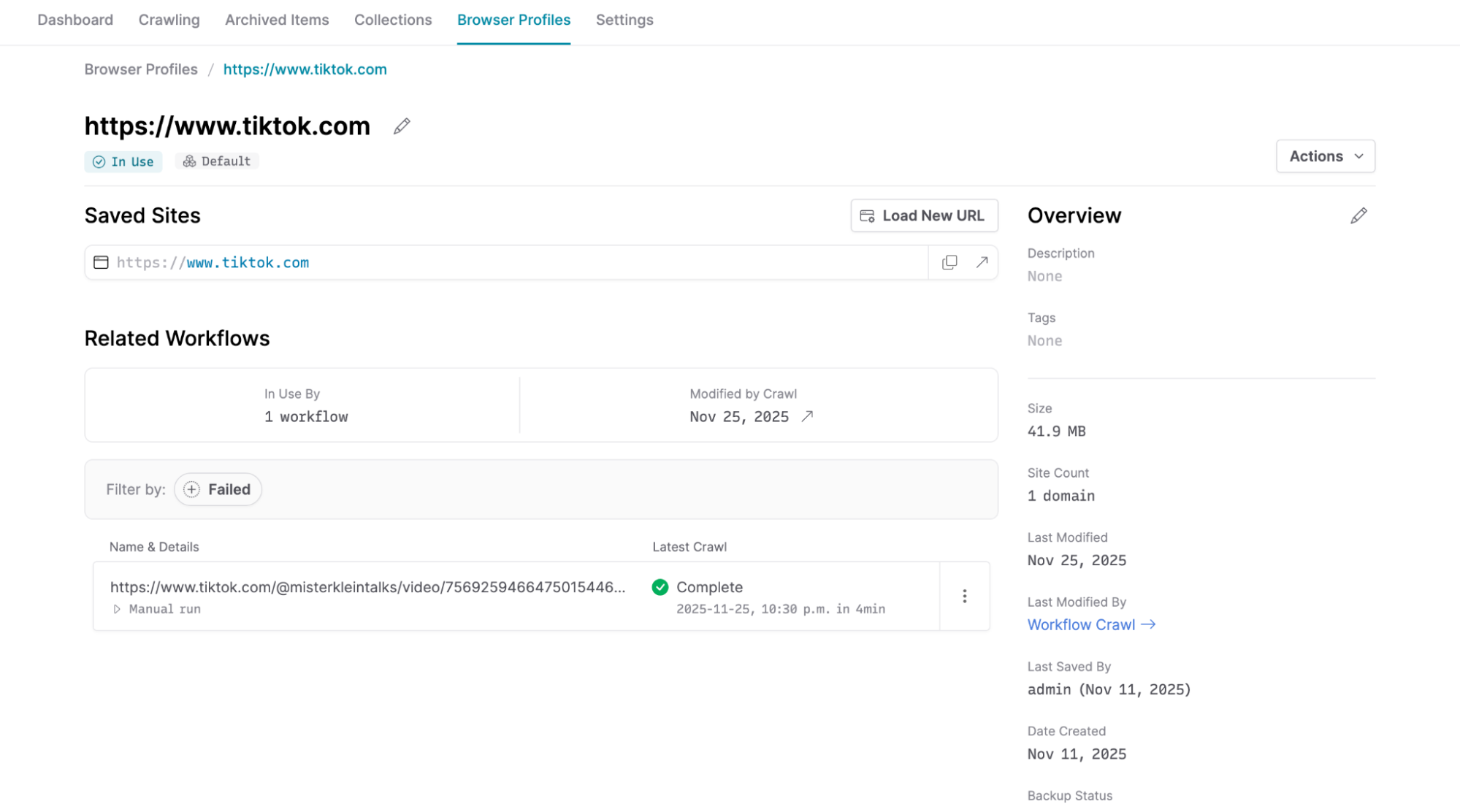
To add additional sites to a browser profile, you can now click the Load New Url button to open the browser profile to a new URL of your choosing.
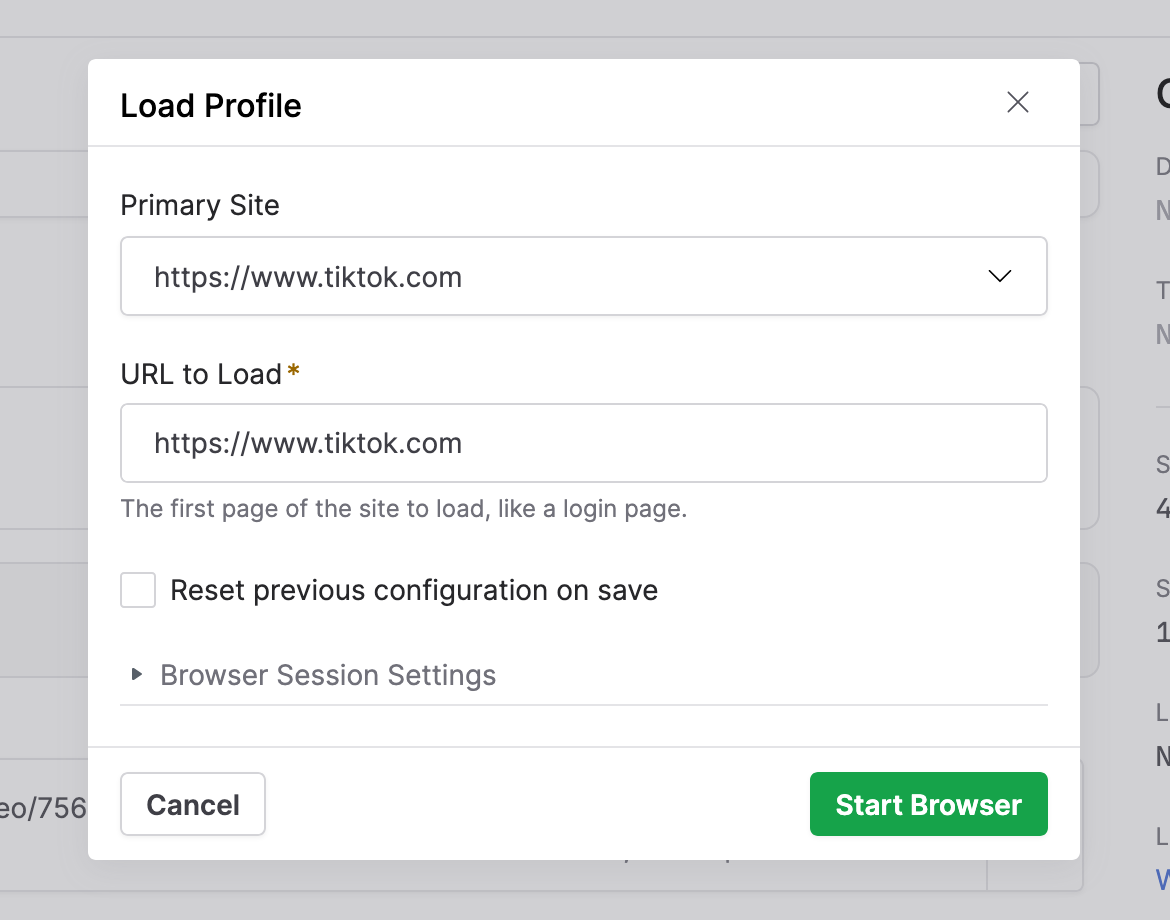
The Load Profile dialog opened by clicking Load New Url or Load Profile from the Actions menu now also has an option Reset previous configuration on save, which can be used to reconfigure a profile from scratch. This provides a much smoother mechanism than before to update a browser profile and all of its related crawl workflows. This setting can be used to reconfigure a browser profile to use a different logged-in user account or different cookie settings without any interference from previously saved data, without needing to create a new browser profile and then manually update the browser profile used in all of the related crawl workflows. This has saved us a lot of time in managing browser profiles for social media and other sites, and we expect our users to enjoy the same benefits.
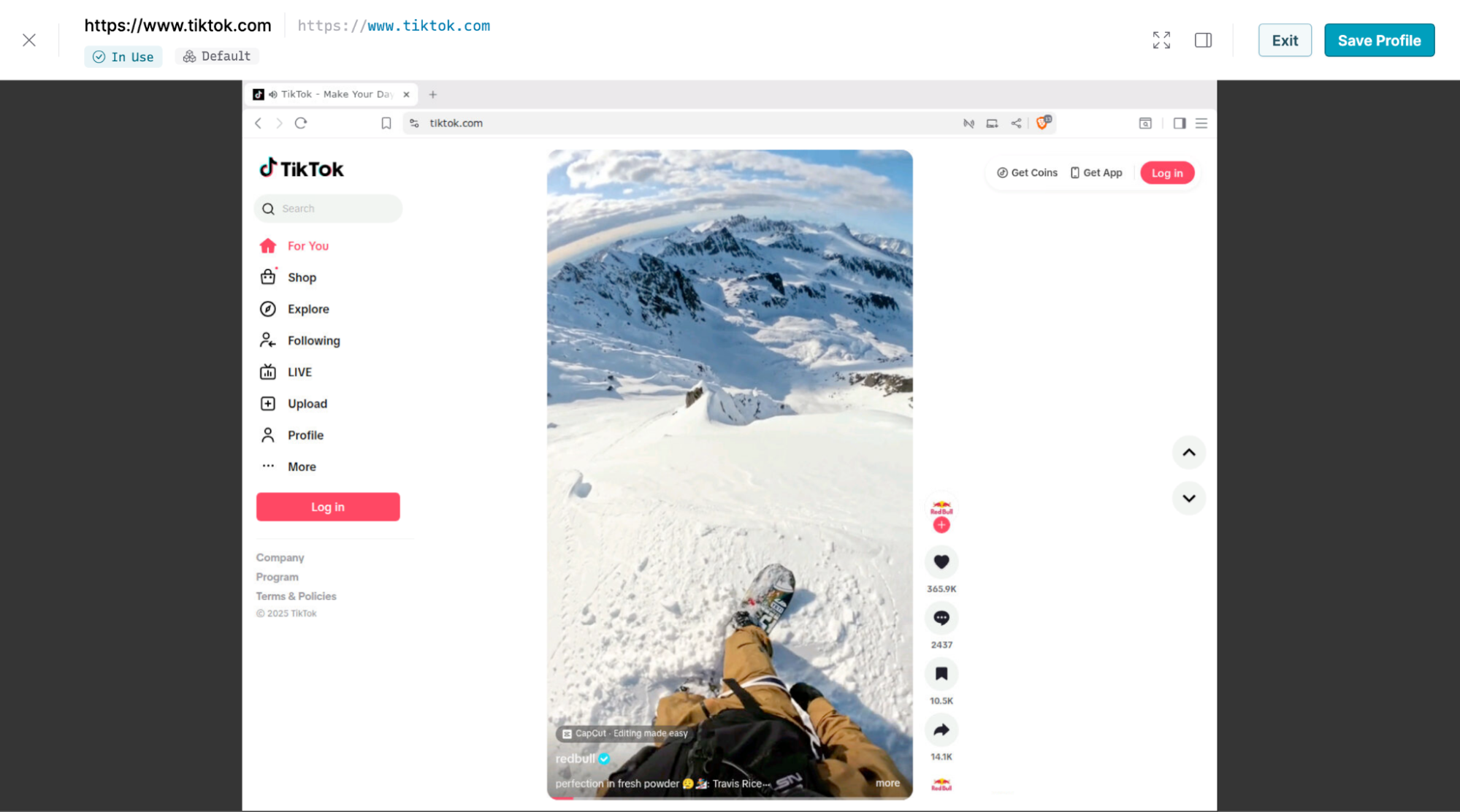
The interface for the interactive browser used to configure browser profiles has also been updated to improve the user experience.
Auto-updating browser profiles
Starting in Browsertrix 1.20, browser profiles are now also automatically updated following each crawl, with the data from the browser profile used during crawling. This ensures that crawls do not run with outdated browser profile data, and more closely matches what a real user browsing the site would look like to the site host. In our testing, this reduced the frequency of logouts on some social media sites significantly when crawl workflows are configured to use the browser on a regular (e.g. daily or weekly) schedule.
Browser profiles and crawling proxies
Previously, it was possible to create a browser profile with one crawling proxy, and then specify a different crawling proxy in the associated workflow. This could result in sub-optimal crawls or even getting blocked by websites.
Starting in Browsertrix 1.20, if a crawling proxy is set on a browser profile, all crawl workflows that use that browser profile will automatically use the same crawling proxy. If you want to change the crawling proxy that a browser profile and its related crawl workflows use, you need only reset the browser profile and select a new crawling proxy. This change ensures that users have the best experience of using browser profiles in their crawl workflows.
Crawling tab refresh
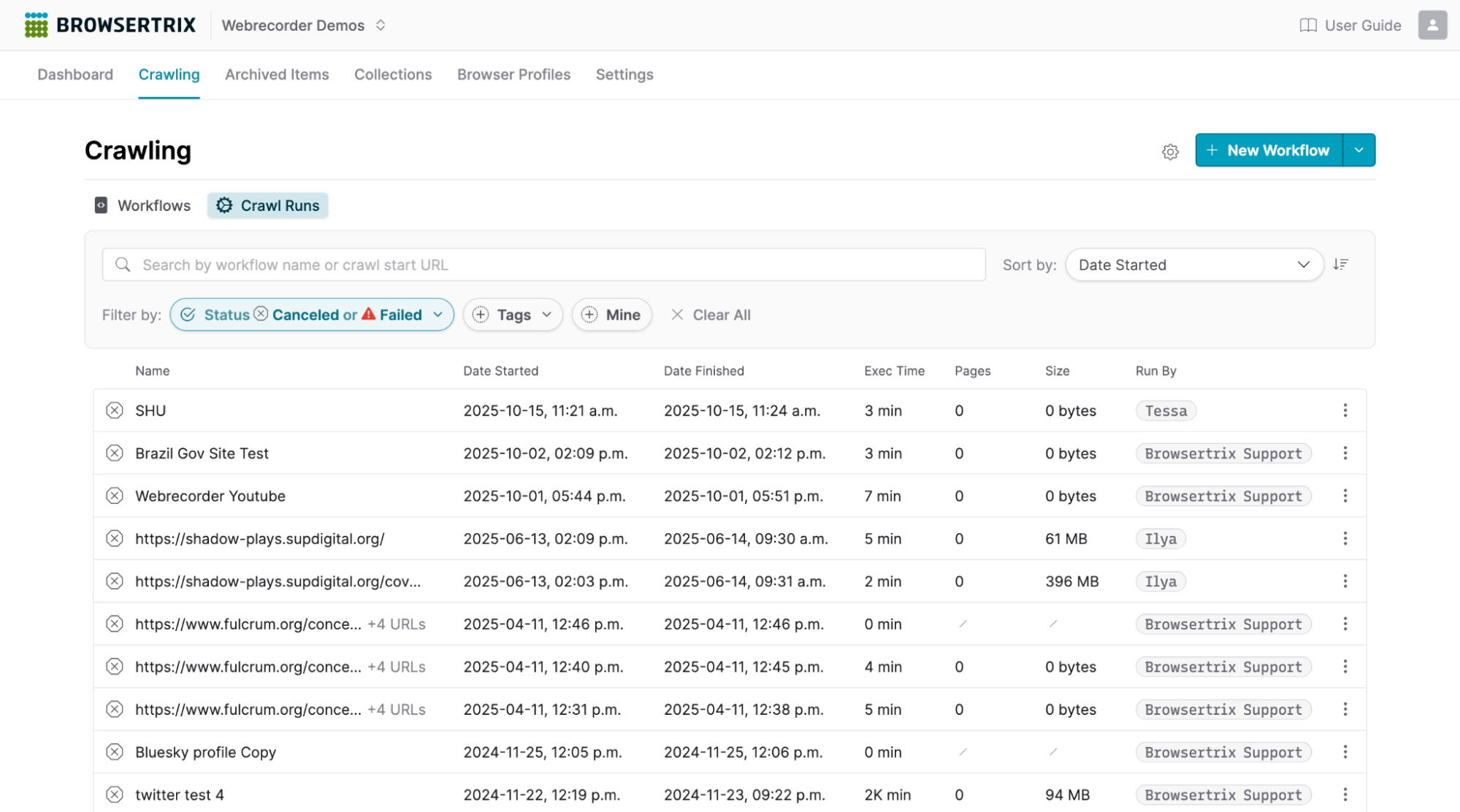
Browsertrix 1.20 also brings a revamped user interface for the Crawling page. We made a few changes here.
First, while the Crawling page still defaults to showing all of your crawl workflows, we’ve now added a Crawl Runs tab that lists all of the crawls run in your organization, including any failed and canceled crawls that have previously been difficult to find information about. Both the Workflows and Crawl Runs tabs also have expanded filtering and sorting options so it’s easier than ever to locate the exact crawl workflow or crawl run you are looking for.
Host-specific global proxies
Another change in Browsertrix 1.20 that is invisible to most users of our hosted service is that Browsertrix now supports setting global proxies that are applied only to specific hosts. In our hosted service, we are using this to always crawl Youtube through a specific proxy, which enables our users to crawl Youtube links and videos without the need for a logged-in browser profile.
If a crawling proxy is set in a crawl workflow, that proxy will override the global host-specific proxies.
Browsertrix 1.19
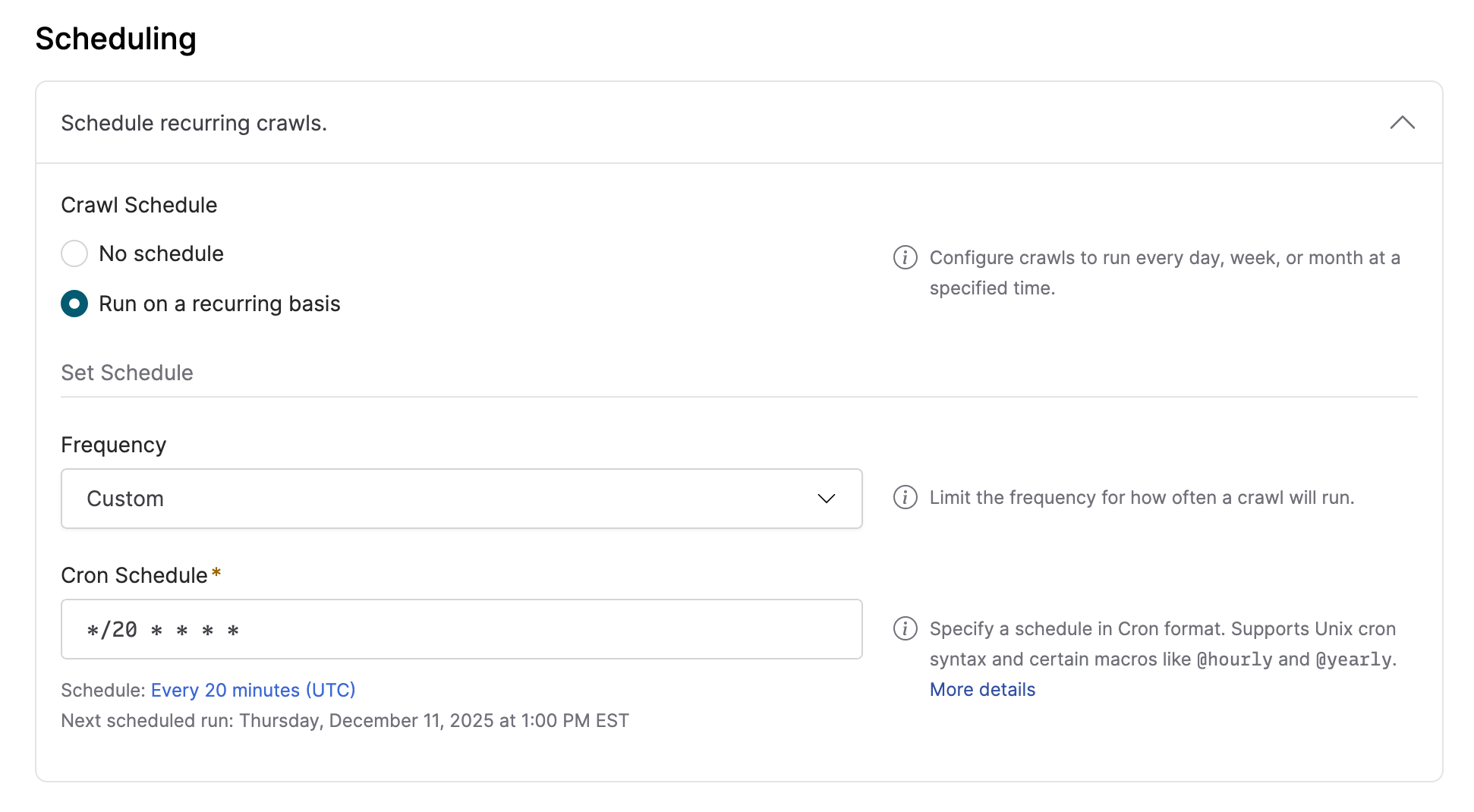
Custom cron schedule for crawl workflows
Browsertrix has long supported scheduling crawl workflows to run at daily, weekly, or monthly intervals. In Browsertrix 1.19, we added the option to specify custom schedules. These schedules can be input using the Unix Cron syntax, providing our users the greatest possible flexibility in setting schedules. Some helpful macros are also supported, including @yearly and @hourly. More details and resources for working with the Cron syntax are available in the User Guide.
Filter archived items by tag
We’ve added tag filters to the Archived Items page, as part of a general strategy of improving our filtering and sorting options across Browsertrix in recent releases. This makes tags more useful in Browsertrix and should help you better organize your archived items and make finding crawls and uploads easier than ever.
Crawl download improvements
Previously, downloading crawls from the action menu’s Download Item button or the Download All button in a crawl’s WACZ Files tab would always download a multi-WACZ, even if the crawl only contained a single WACZ file. This added an unnecessary layer of nesting to some downloads. Starting in Browsertrix 1.19, the Download Item and Download All options will only generate a multi-WACZ if the crawl has multiple WACZ files, otherwise the crawl’s WACZ file will be downloaded as-is rather than repackaged as a multi-WACZ.
Comments
Reply on Bluesky to join the conversation.